I haven't been able to do this yet, although strangely I used to be able to do it, with the same hub* between a win 98 machine and a XP machine... Which is allegedly way harder (and I had to use accounts named the same and somewhat fine tuned tricks like that).
*However, it was when I was in a university network.
I'm sort of convinced the hub may not let me do this, as I read some hubs don't have that capacity. I put both machines with the same workgroup, and they simply refuse to see each other. I get wired internet from some sort of ADSL/broadband modem, the RJ45 from that modem goes to the uplink port of the hub, and then I wire an RJ45 to each of the 2 XP machines.
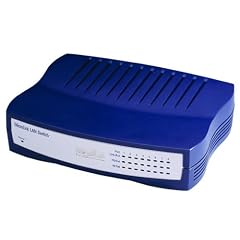
The hub is a "devolo MicroLink LAN Switch", looks exactly like this:
http://ecx.images-amazon.com/images/I/4 ... AA240_.jpg
What can I be doing wrong, or indeed the hub won't let me transfer files? Perhaps I can just set up one of my machines as some sort of FTP server to transfer the folder I want to copy across? (Otherwise, I'll use flashdrives and so on, but I think it is quite stupid that I'm having such trouble transferring the files with 2 XP machines).
Ivo.
Transferring files between 2 XP pcs, and using a hub

Did you enable file sharing?
You'll need to go to the properties on a drive or folder on the target machine and enable sharing.
Then you'll be able to see that from other PCs on the workgroup via "Network Neighborhood"
You can also then mount those network shares as a network drive.
You'll need to go to the properties on a drive or folder on the target machine and enable sharing.
Then you'll be able to see that from other PCs on the workgroup via "Network Neighborhood"
You can also then mount those network shares as a network drive.
Support Racketboy on Patreon
Follow Racketboy on Social: Instagram / Twitter / Facebook
Subscribe to Email Newsletter (Blog / Guide Updates Every Week or Two)
Follow Racketboy on Social: Instagram / Twitter / Facebook
Subscribe to Email Newsletter (Blog / Guide Updates Every Week or Two)
-
PharmaceuticalCowboy

- 64-bit
- Posts: 463
- Joined: Fri Sep 21, 2007 2:22 pm
- Location: Columbus, Ohio

if you have filesharing on (and are sharing files or folders) you can go to "RUN" and type \\computername
you could also get a crossover cable and skip the hub
depending on the file sizes, thumb drives and external harddrives work OK too
if your internet connection speed is decent, you can upload the files online and download them back
you could also get a crossover cable and skip the hub
depending on the file sizes, thumb drives and external harddrives work OK too
if your internet connection speed is decent, you can upload the files online and download them back

Some modern NICs (including every NIC included in an Apple Macintosh computer for the past 7 or so years) can auto-detect whether you are using a cross-over cable or a straight cable and adapt accordingly. So as long as one of the PCs can do this you can just connect them with any old cable and adjust your network settings as appropriate.

I was interested in sharing files between two computers as well a while back, and searching online, all I found was either using a hub or a crossover cable.
What I did not find is the method I now use all the time...
You can transfer files between two computers using WindowsXP and just a simple ethernet cable (not a crossover cable).
What you will need:
1. Two computers in close proximity (so that your ethernet cable can connect the two)
2. An ethernet cable
Here are the steps I follow to transfer files:
1. Go to Start -> All Programs -> Accessories -> Communications -> Network Connections
2. On the upper left side of the screen click "Setup a Home or Small Office Network"
3. Click next four times, then choose a name for the workgroup (note: this can be whatever you would like), click next
4. Make sure the "Turn on file sharing" button is selected, click next twice
5. Go ahead and choose "Just finish the wizard..."
6. Now perform steps 1-5 on the second computer
7. Go ahead and restart both the computers (although it will normally work without the restart)
8. Browse to whichever files/folders you would like to share, right click on the folder containing the files/folders in question, then choose Properties
9. Click the middle tab, Sharing, and in the middle of the page, check "Share this folder on the network"
10. Connect the two computers with the ethernet cable.
11. Both computers will start to acquire a network address, when they complete, it will say "Limited or no connectivity" (if not, see note below)
12. Go to your destination computer, right click the Start button and choose Explore
13. Now expand My Network places -> Entire Network -> Microsoft Windows Network -> then the name of your workgroup you selected in step 3
14. If all has gone right, you can now see the other computer listed on the network, and can get any shared files on it
Note: If the connection between the two does not say "Limited or no connectivity", make sure that the computers are obtaining an IP automatically. To check, go to Network Connections (as in step 1). Right click on your "Local Area Network" and choose Properties. Highlight Internet Protocol (TCP/IP) and choose Properties. Make sure that "Obtain an IP address automatically" is selected. Repair your connection (right click the LAN and choose repair).
Let me know if that helps, or if you are having difficulties getting that to work.
What I did not find is the method I now use all the time...
You can transfer files between two computers using WindowsXP and just a simple ethernet cable (not a crossover cable).
What you will need:
1. Two computers in close proximity (so that your ethernet cable can connect the two)
2. An ethernet cable
Here are the steps I follow to transfer files:
1. Go to Start -> All Programs -> Accessories -> Communications -> Network Connections
2. On the upper left side of the screen click "Setup a Home or Small Office Network"
3. Click next four times, then choose a name for the workgroup (note: this can be whatever you would like), click next
4. Make sure the "Turn on file sharing" button is selected, click next twice
5. Go ahead and choose "Just finish the wizard..."
6. Now perform steps 1-5 on the second computer
7. Go ahead and restart both the computers (although it will normally work without the restart)
8. Browse to whichever files/folders you would like to share, right click on the folder containing the files/folders in question, then choose Properties
9. Click the middle tab, Sharing, and in the middle of the page, check "Share this folder on the network"
10. Connect the two computers with the ethernet cable.
11. Both computers will start to acquire a network address, when they complete, it will say "Limited or no connectivity" (if not, see note below)
12. Go to your destination computer, right click the Start button and choose Explore
13. Now expand My Network places -> Entire Network -> Microsoft Windows Network -> then the name of your workgroup you selected in step 3
14. If all has gone right, you can now see the other computer listed on the network, and can get any shared files on it
Note: If the connection between the two does not say "Limited or no connectivity", make sure that the computers are obtaining an IP automatically. To check, go to Network Connections (as in step 1). Right click on your "Local Area Network" and choose Properties. Highlight Internet Protocol (TCP/IP) and choose Properties. Make sure that "Obtain an IP address automatically" is selected. Repair your connection (right click the LAN and choose repair).
Let me know if that helps, or if you are having difficulties getting that to work.